
 EZBin
EZBin guide
Everything the app does, screen by screen. New here? Start with the first-run setup. What changed lately? See what’s new.
First-run setup
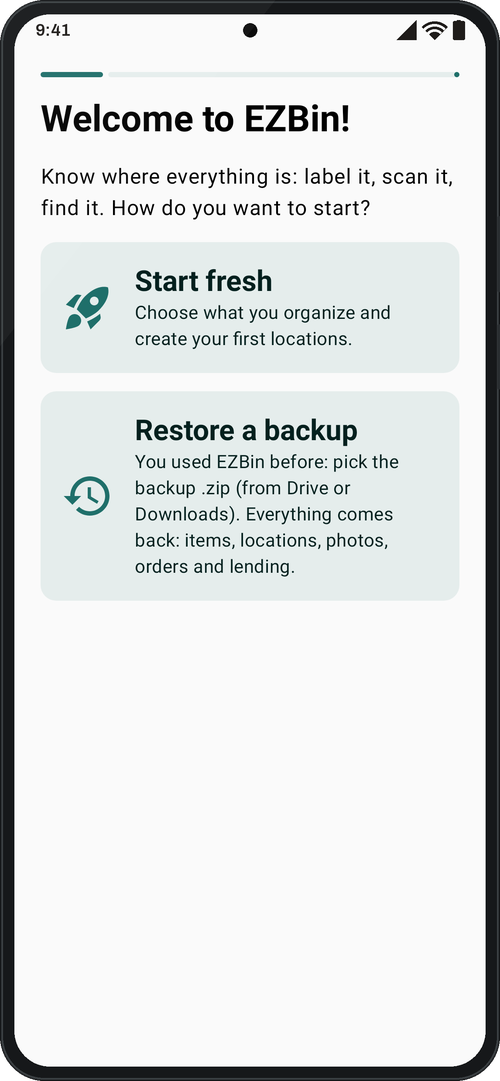
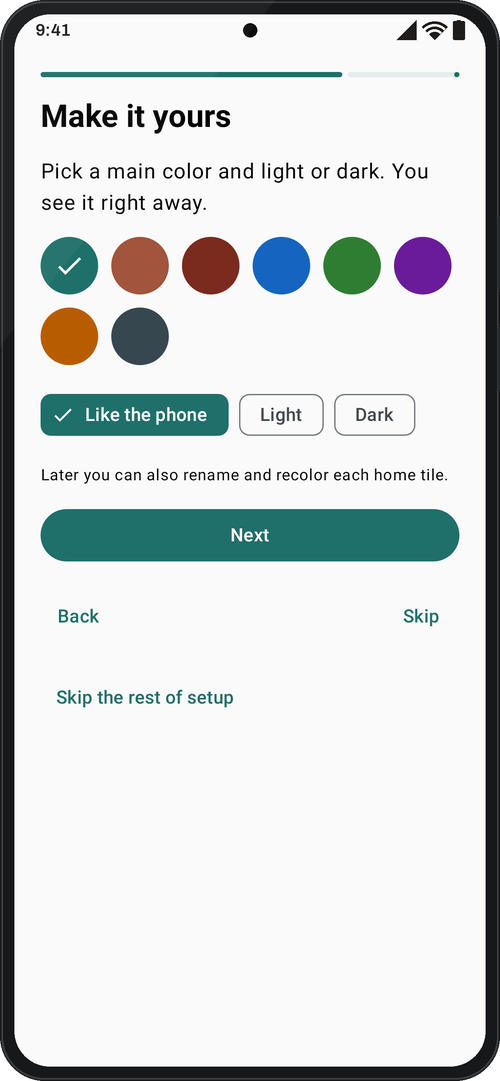
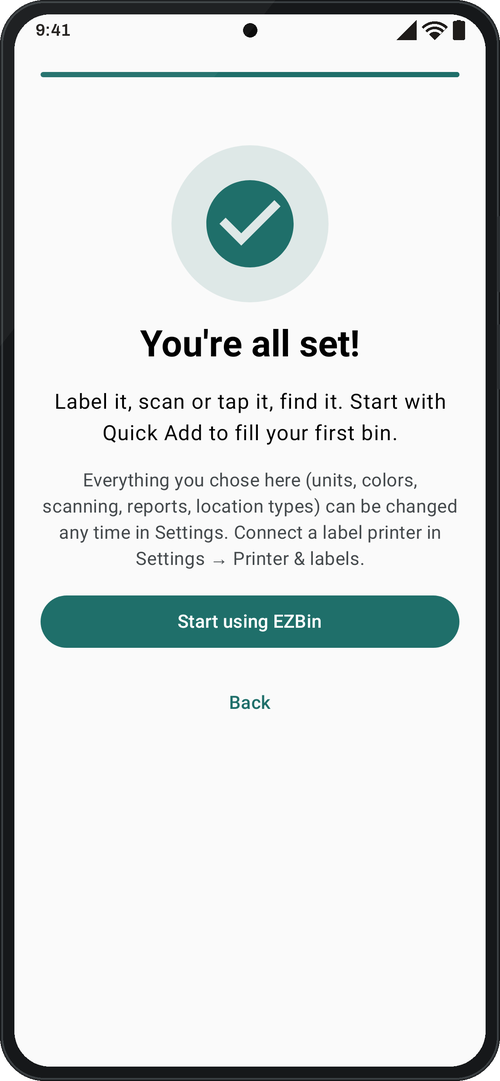
Shown once, on a new phone. “Welcome to EZBin!” asks how to start: Start fresh, or Restore a backup if you used EZBin before (it brings back everything, lending and its photos included). Starting fresh: what you’ll organize (Home, Vehicle & tools, Warehouse & shop), your first locations, units (US, metric or one by one), Make it yours (main color, light or dark), and Scanning & reports (camera or NFC, beep, vibrate, photos in PDF), then “You’re all set!”. Every step has Back and Skip, and everything can be changed later in Settings.
Home screen
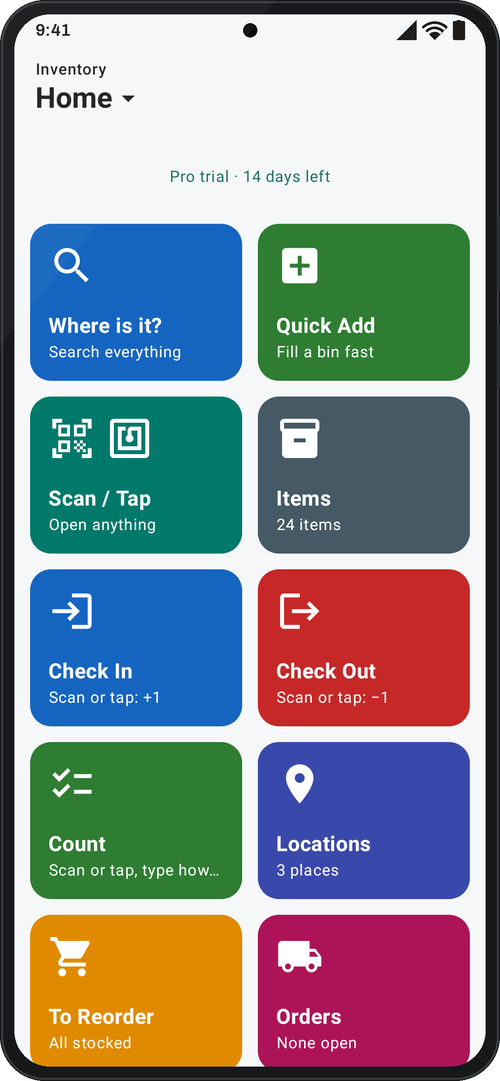
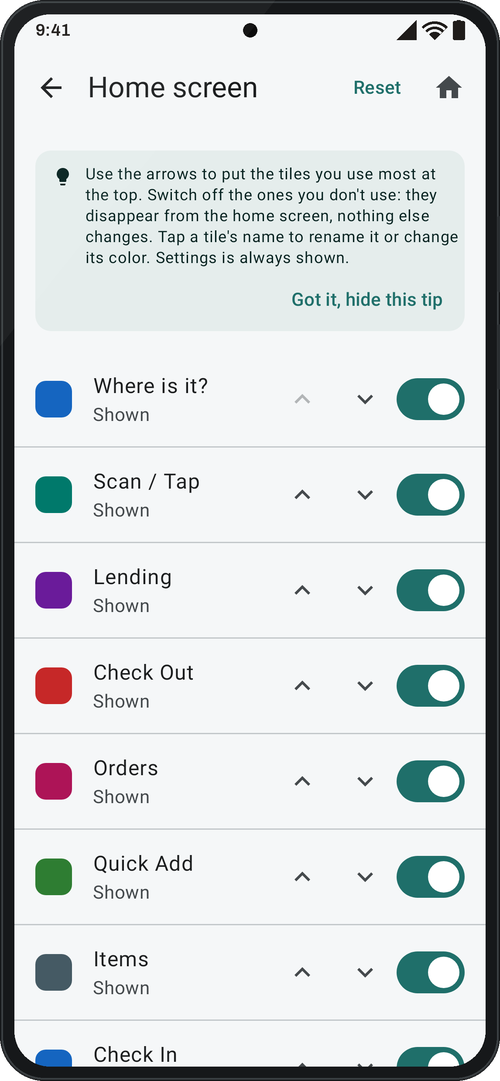
Large tiles open every tool: Where is it?, Quick Add, Scan / Tap, Items, Check In, Check Out, Count, Locations, To Reorder, Orders, Activity, Lending, Print Labels, Move, Reports and Settings. Tap the inventory name at the top to switch inventories; every screen has Back and Home. In Settings → Home screen tiles you put them in your order, hide the ones you don’t use, and rename and recolor each one; Reset brings back the default, and Settings is always shown.
“Where is it?” search
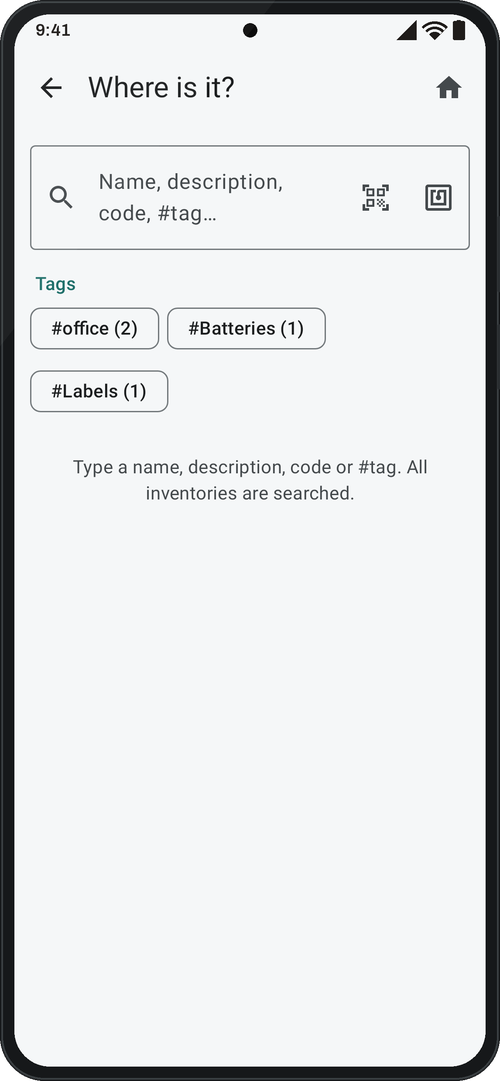
Searches every inventory at once (items, locations and boxes) by name, description, comments, code, product UPC, tags and custom fields. Accents, capitals and simple plurals don’t matter, and sizes like 3/8 are found too. Type #tag for an exact tag; tag chips show before you type. Each result shows its full path and quantity. The search box has a scan button (a label or a product UPC) and a tap button (an NFC tag).
Search works as you type everywhere: the first letters of a name or a code are enough. That goes for “Where is it?”, the magnifier inside a box, Print labels, and the keyboard in Check In and Check Out.

Quick Add
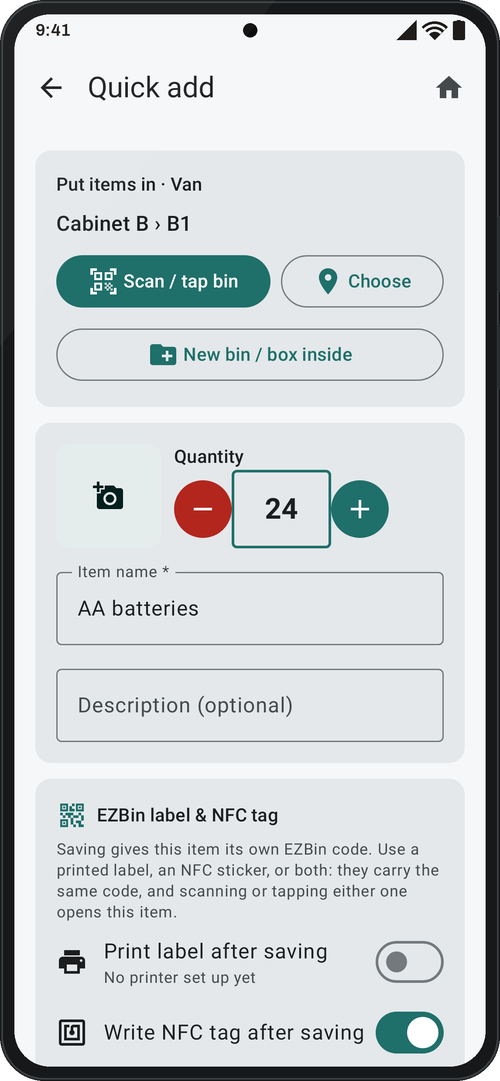
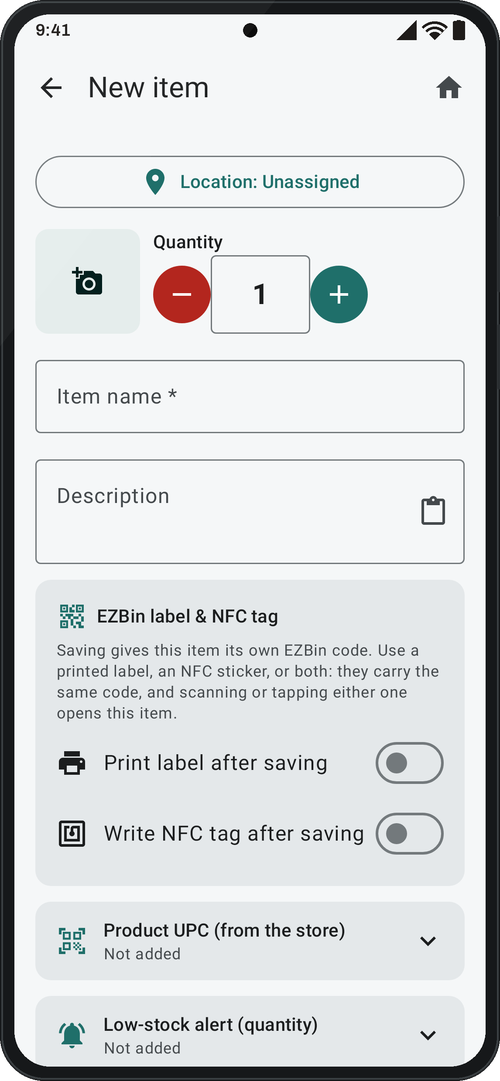
Choose where items go: scan or tap the bin, pick it from a list, or create a new bin; from a bin, Add → Quick add many items here starts with it chosen. For each item: photos, quantity (type 150 instead of tapping + 150 times), name and description. EZBin’s own camera opens on the back camera, so you can take several photos of an item in a row; or choose up to 10 from the gallery. Then the EZBin label & NFC tag card: print a label, write an NFC tag, or both, as you save; both carry the same EZBin code and either one opens the item. Everything else is in folded sections: Product UPC (the number on the product or its box, not the EZBin label), Low-stock alert (quantity), Measurements & weight, Tags, Comments, Where to buy and Your fields. The keyboard’s Done key just closes the keyboard; Save & next saves the item and starts the next one at the top, with every section folded. Added now lists what you added, with print and NFC buttons. New item and Edit item use the same layout.
Scan / Tap, Check In, Check Out and Count
Scan / Tap opens whatever you scan or tap: an item, a box, an inventory, or a product UPC saved on an item. An unknown code lets you create an item with that UPC or add it to one you already have; if several items share a UPC, it asks “Which one?”. It reads QR, Code 128 and 39, EAN-8 and 13, UPC-A and E and Data Matrix, and has a flashlight and “Type a code”. Many phones turn NFC off while the camera is on, so you choose Camera or NFC, and the choice is remembered.
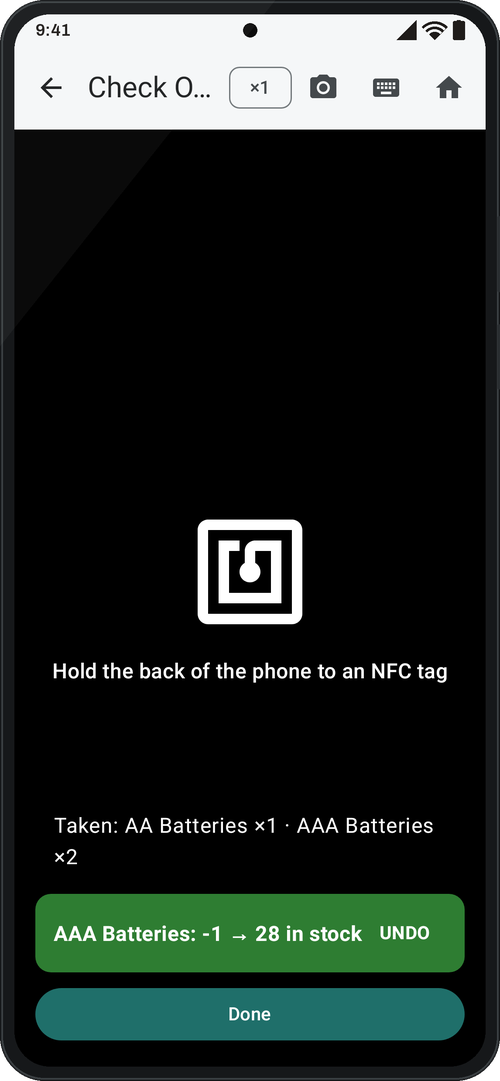
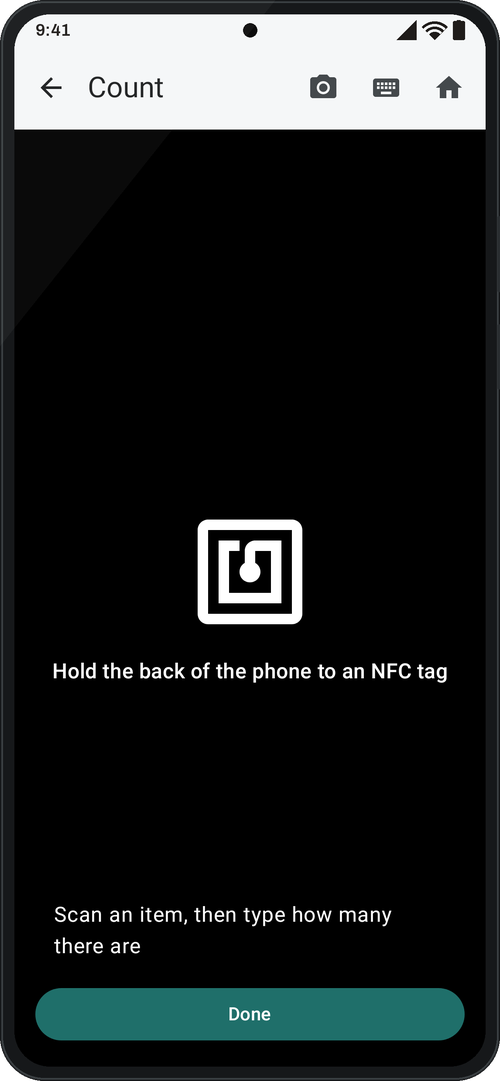
Check In adds 1 and Check Out takes 1 per scan or tap, or type any amount. A banner shows the new stock (red when low), Undo stays for 5 seconds, and a running list shows the session; stock never goes below 0. Count is for stock taking: scan or tap an item, type how many there are or tap “It is right”, and the stock is corrected, with Undo, and logged as Counted.
Move
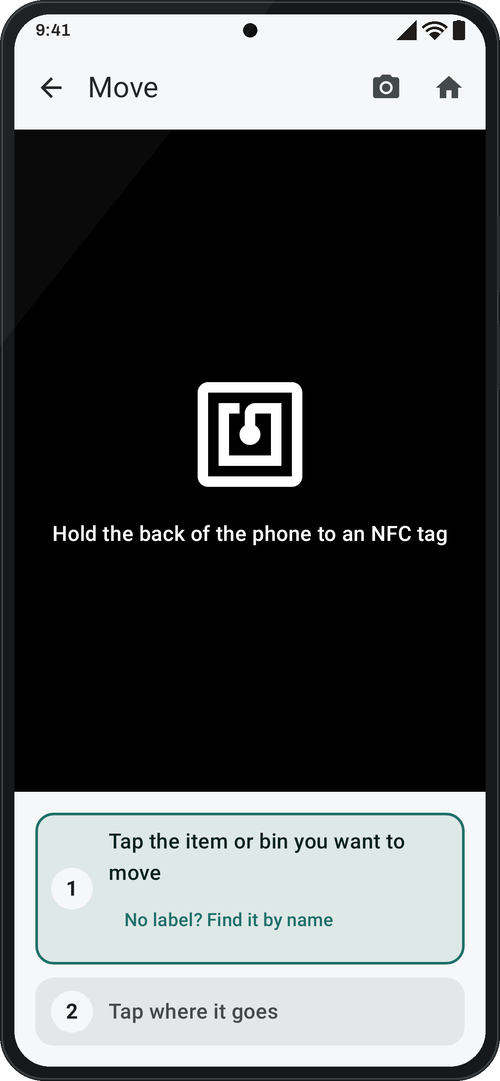
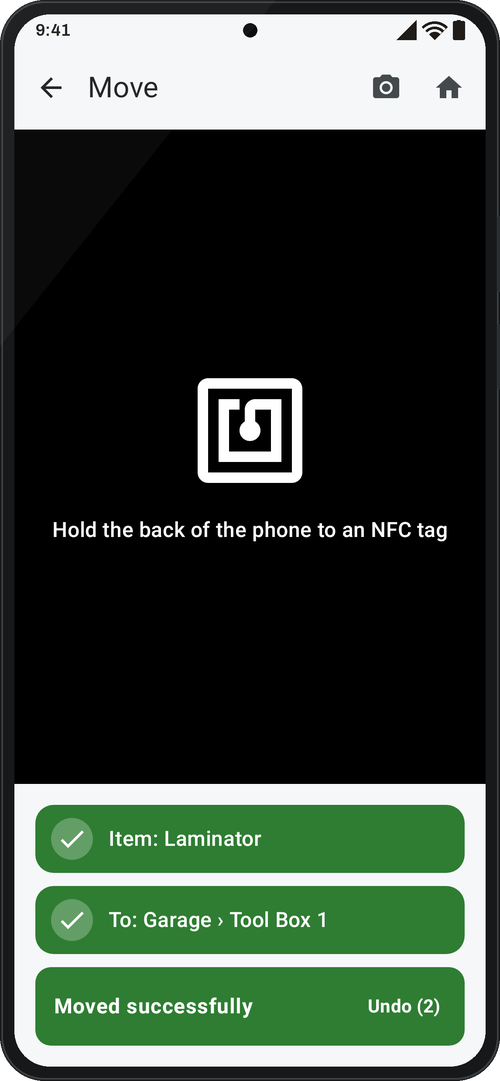
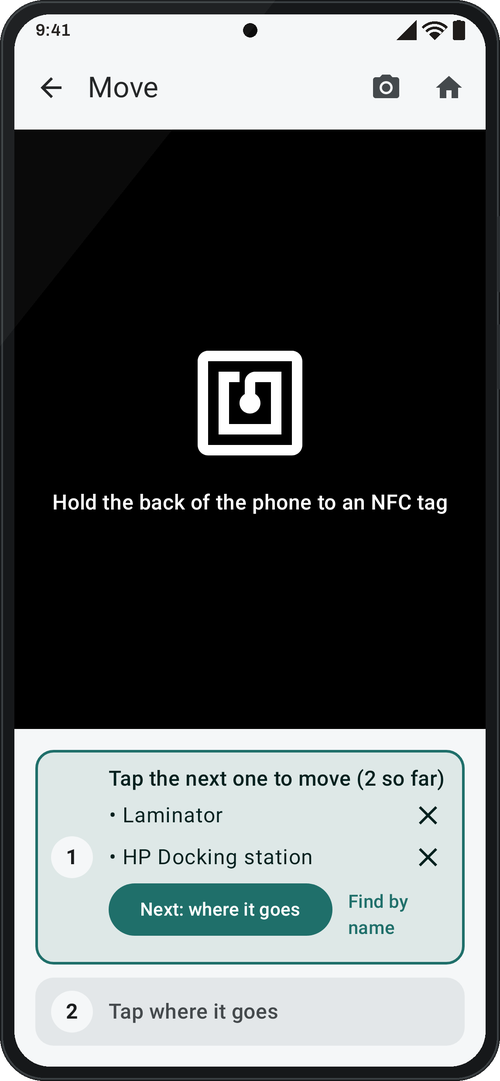
Two steps, always on screen. Step 1: scan or tap the item or box to move; it beeps and turns green. Step 2: scan or tap where it goes, or choose it from a list; it beeps, turns green and it’s moved. You get “Moved successfully” with Undo for 5 seconds, then the screen is ready for the next move.
Move several at once: after the first one, tap Move more than one, scan or tap the others, then Next: where it goes. Everything moves together, and Undo puts all of it back. Already in the box? Open it and use Select several to move.
No label? Find it by name. A box can’t be moved into itself, and lent items and boxes can’t be moved until they come back. Items can also be moved from their page (⋮ → Move to…).
Locations and boxes
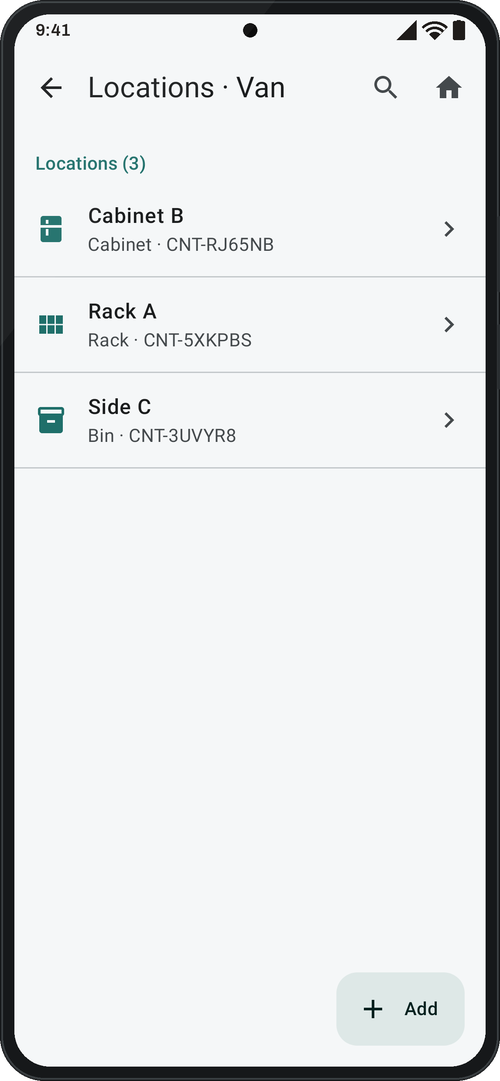
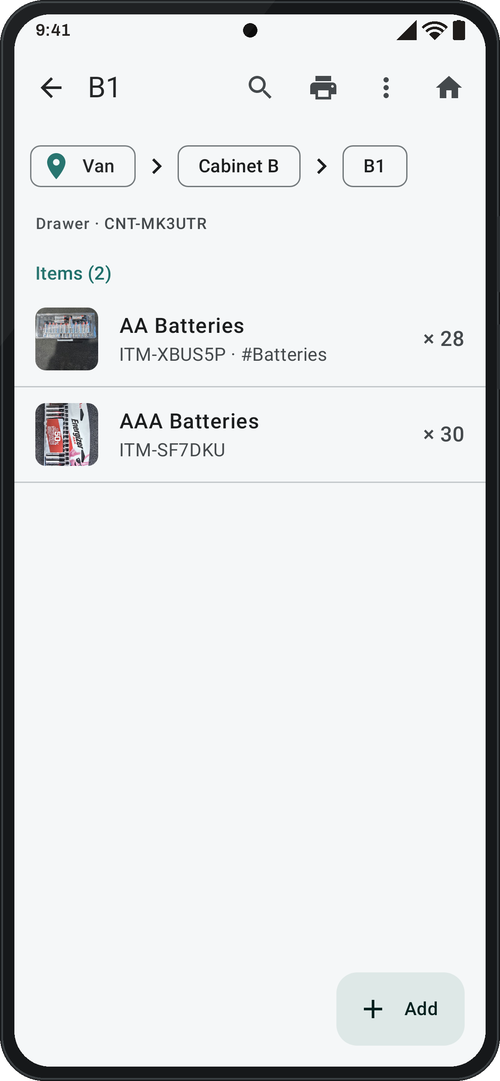
Build your layout as deep as you need: inventory, locations, boxes inside boxes, then items (Van › Cabinet B › B1 › AAA batteries). Each place shows its path, notes, type, code, tags, custom fields and what’s inside, plus its size and total volume and weight: a measured box wins, otherwise it adds up what’s inside. From a place you can print its label, print labels for everything inside, write an NFC tag, make a packing list or move it.
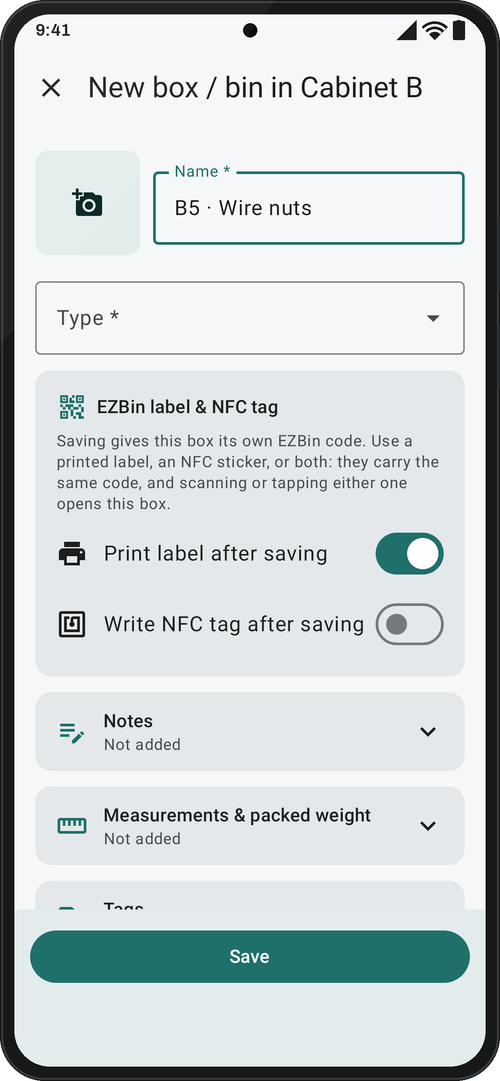
New and Edit box is a full screen like New item: name, type, the EZBin label & NFC tag card, and folded notes, measurements and packed weight, tags and your fields. Deleting a box tells you what’s inside and, by default, keeps the contents by moving them up one level; items are never deleted.
Add, select and move
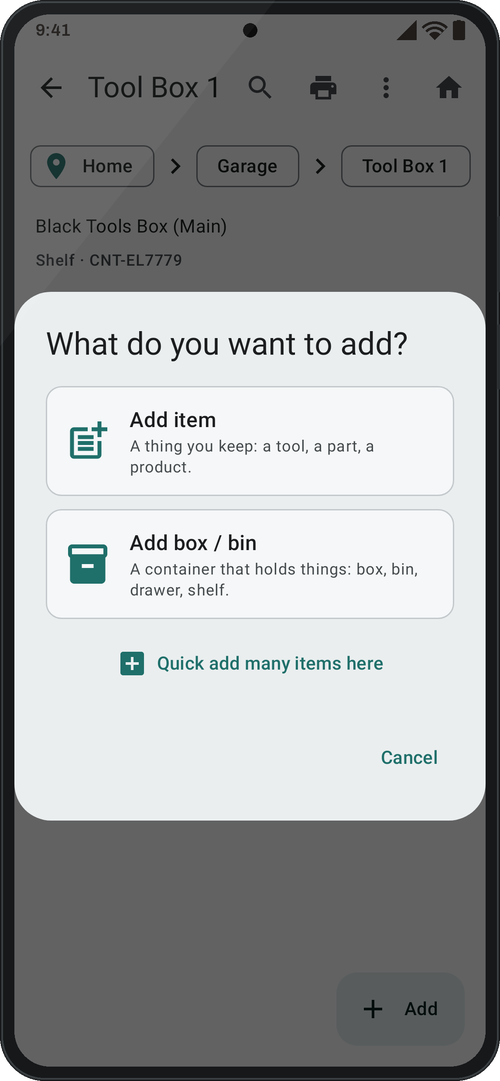
The Add button in a location or box asks what you are adding: Add item (a tool, part or supply you keep) or Add box / bin (a container), each with its icon, plus Quick add many items here. At the top level it offers Add location.
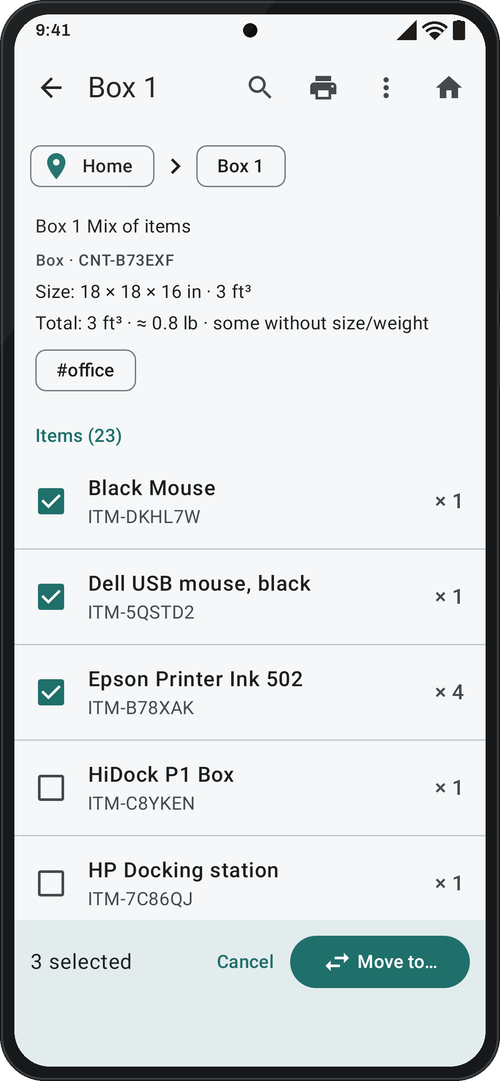
Select several to move: inside a box, ⋮ → Select several to move (or press and hold a row), tick boxes and items, then Move to… and pick the place by search, scan or NFC tag. Undo for 5 seconds. Lent items and boxes can’t be ticked.
A new box, bin or location can have one photo (the same back camera, or the gallery), shown at the top of its page. Its type starts empty and you choose it on purpose, so nothing ends up saved as the wrong type by accident.
Choosing a place anywhere (Move, New item, Quick Add, returns, reports): type to find it, tap the scan button to scan its label, or tap its NFC tag.
Box menu and search inside
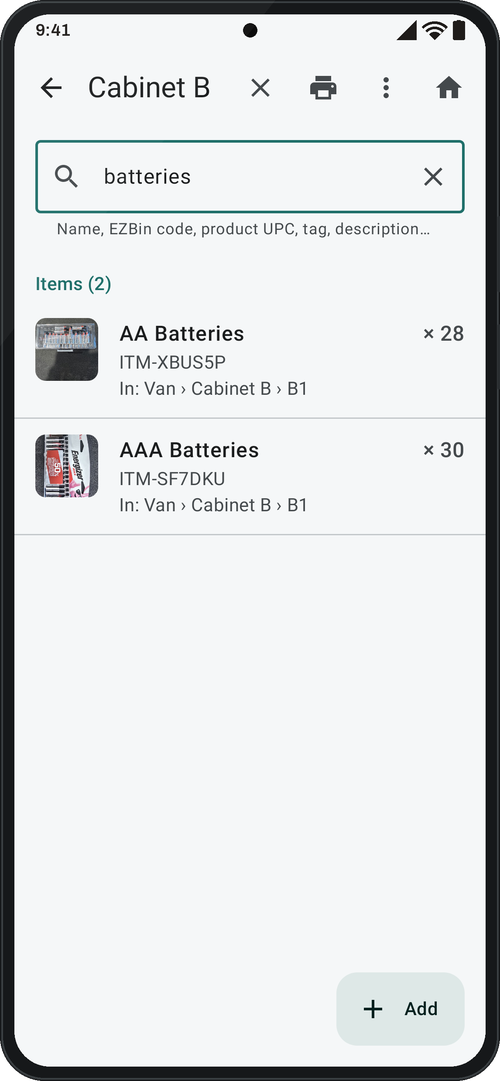
The magnifier at the top of any location or box searches everything inside it, at any depth, by name, EZBin code, product UPC, tag, description or your fields. Each result says where it is (In: Van › Cabinet B › B1). At the top level it searches the whole inventory.
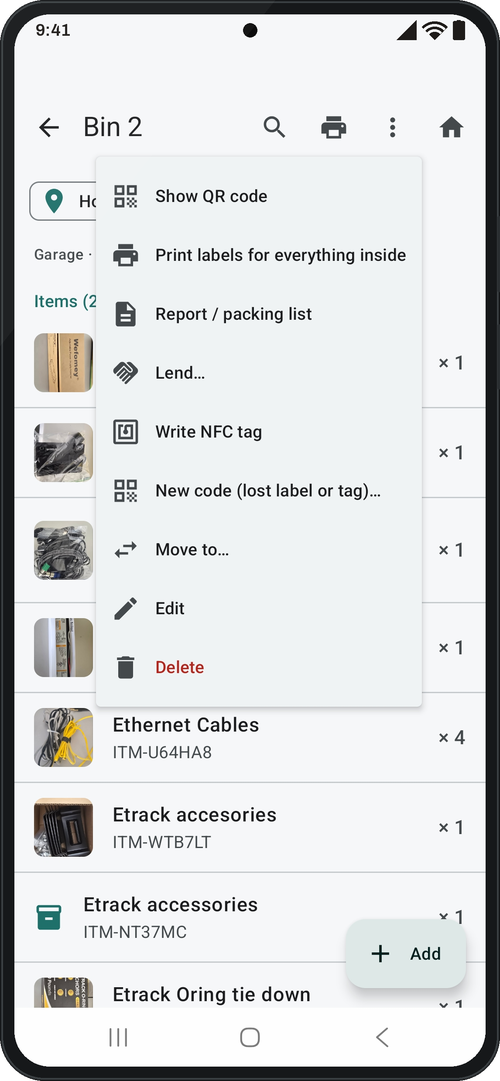
The ⋮ menu is the same for a location, a shelf, a box or a bin:
- Show QR code: the box’s EZBin code big on screen, to scan with another phone or check a label.
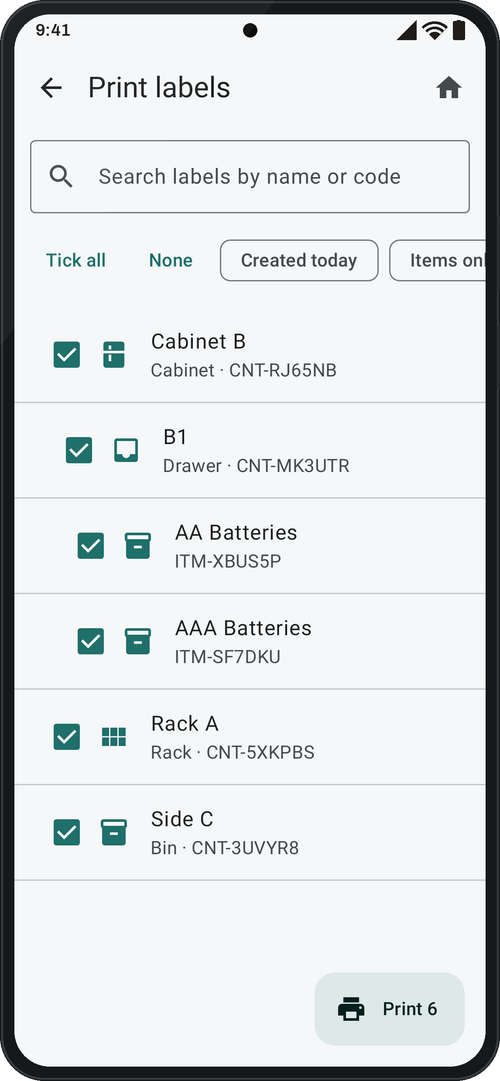
- Print labels for everything inside: a checklist of every box and item inside, all ticked; untick what you don’t want, search by first letters or any word, then print them in one go.
- Report / packing list: what’s inside, how many and where, as Excel, PDF or CSV. Handy for moving, insurance or a job site.
- Lend… (Pro): lend the box with everything inside (shelves, boxes and bins; not a top-level location like Garage).
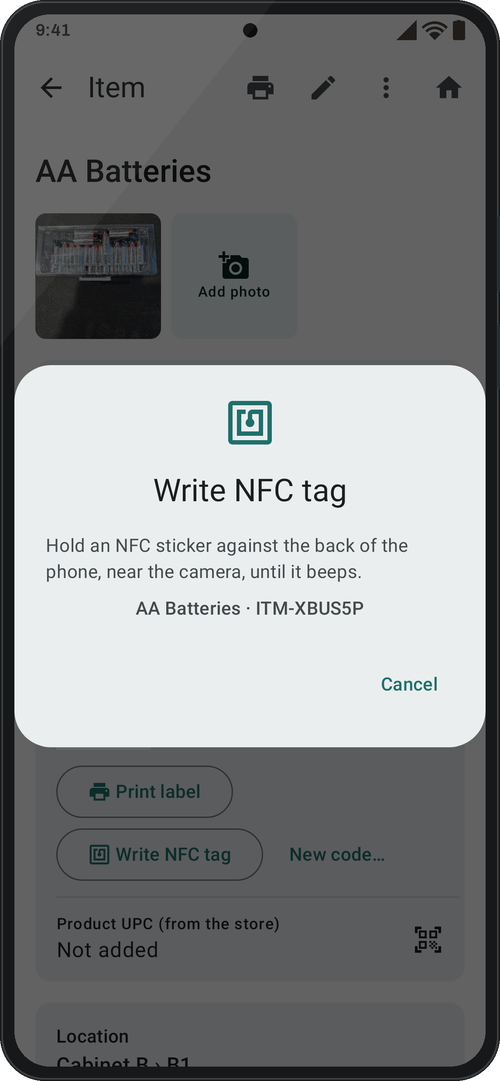
- Write NFC tag: put the box’s code on an NFC sticker; tapping it later opens the box, even with the app closed.
- New code (lost label or tag)…: gives the box a new code when a label is lost or damaged; the old code stops working, and the contents don’t change.
- Move to…: move the box, with everything inside, to another place.
- Edit: name, type, notes, measurements and packed weight, tags and your fields.
- Delete: tells you what’s inside and, by default, moves the contents up one level; items are never deleted.
Item page
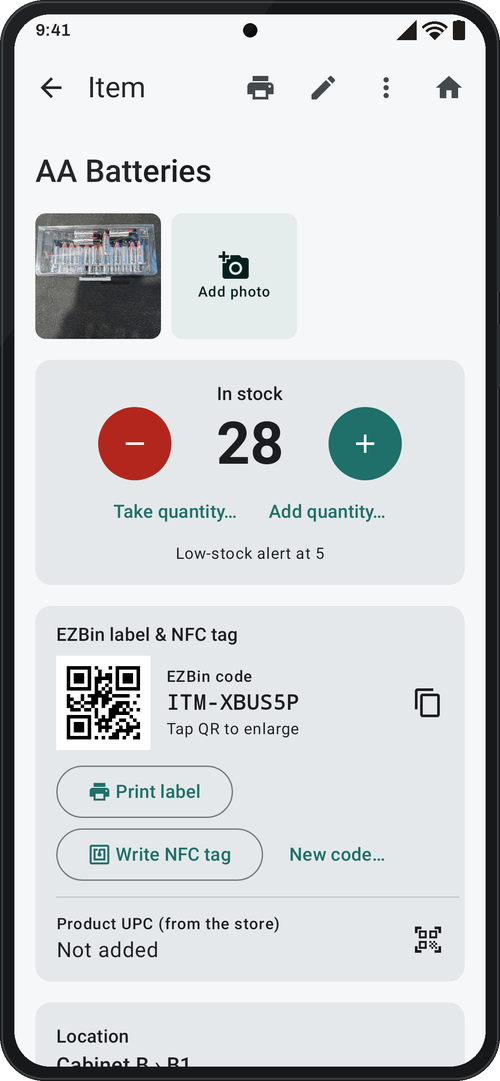
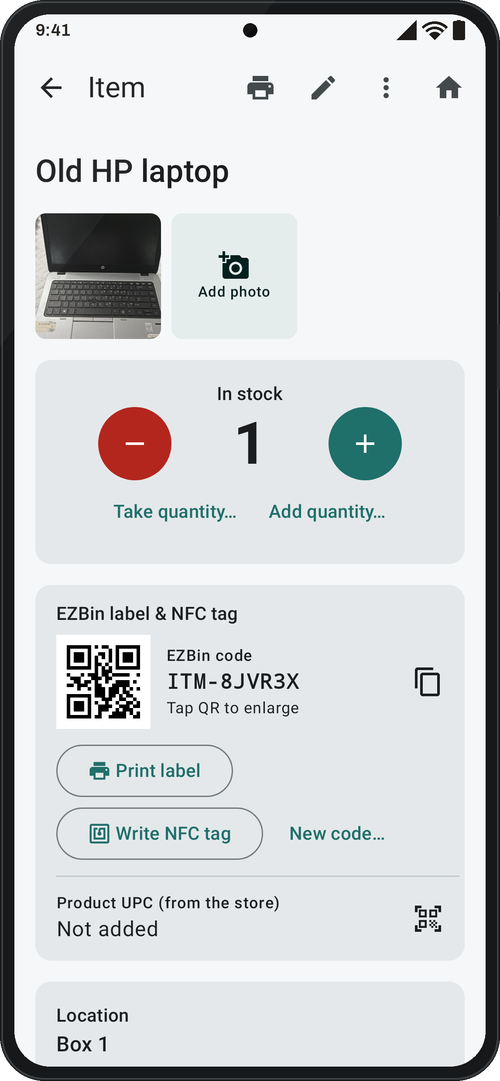
The full name and description on top, photos (tap one to view it full screen or delete it), stock with − and + buttons, “Take/Add quantity…” and Undo, a low-stock alert quantity, and what’s on order with its date. Its EZBin code (on a printed label, an NFC tag, or both) and its product UPC, location, size and weight, tags and custom fields. Save where to buy it (pasting a product link detects the store), log orders, and see every stock change in the history. The ⋮ menu has Write NFC tag, Move to… and Delete.
Items and To Reorder
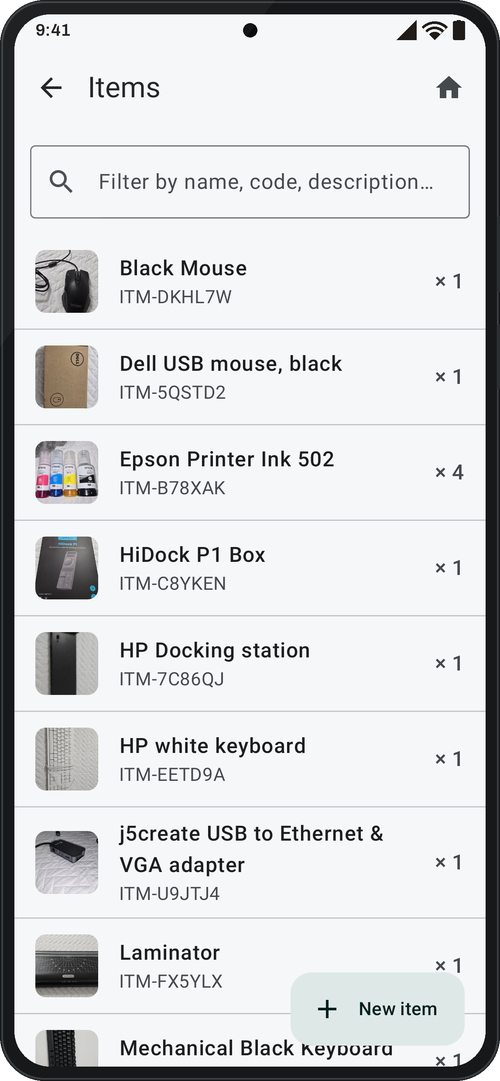
All items with photo, quantity (red with a warning when low) and what’s on order, with a filter by name, code or description. To Reorder lists only what’s at or below its low-stock alert.
Orders
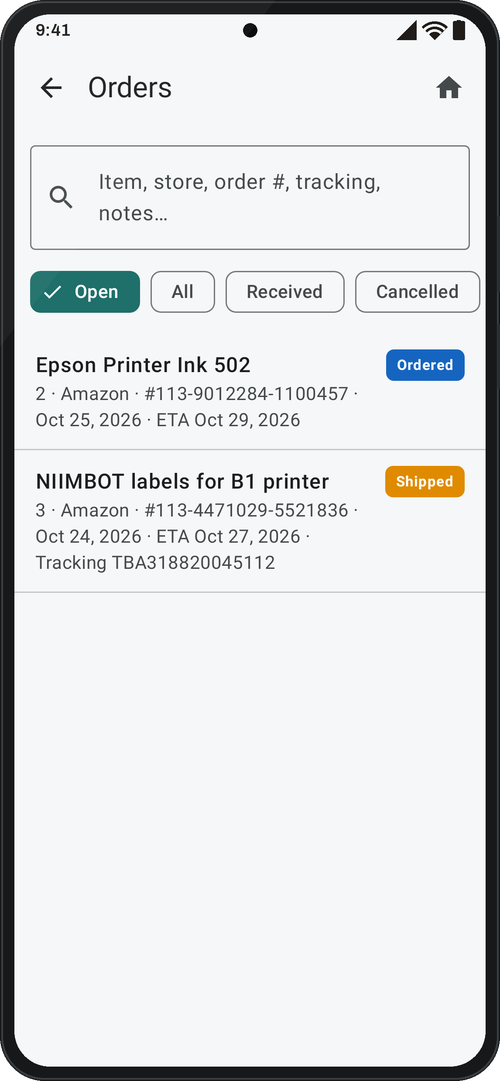
Log a purchase with store, quantity, total paid, order and tracking numbers, dates and notes, and attach photos, screenshots or PDFs of the receipt or invoice. Statuses are Ordered, Shipped, Received and Cancelled; changing a status never changes stock. Receive… asks how many arrived, then “Received + add to stock” or “Received only”.
Activity
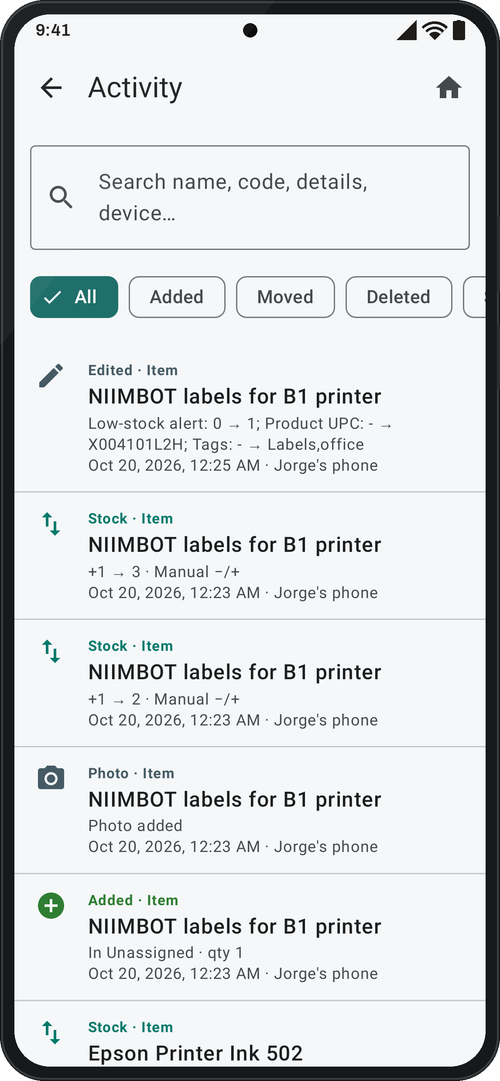
Every change is logged with date, time and which phone made it: created, edited (with what changed, quantity edits included), moved, deleted, every stock change and its source (scan, manual, count, order received, undo), photos, NFC tags written, orders, lending and backups. Filter by type or search. Rename the phone in Settings → This device.
Lending Pro
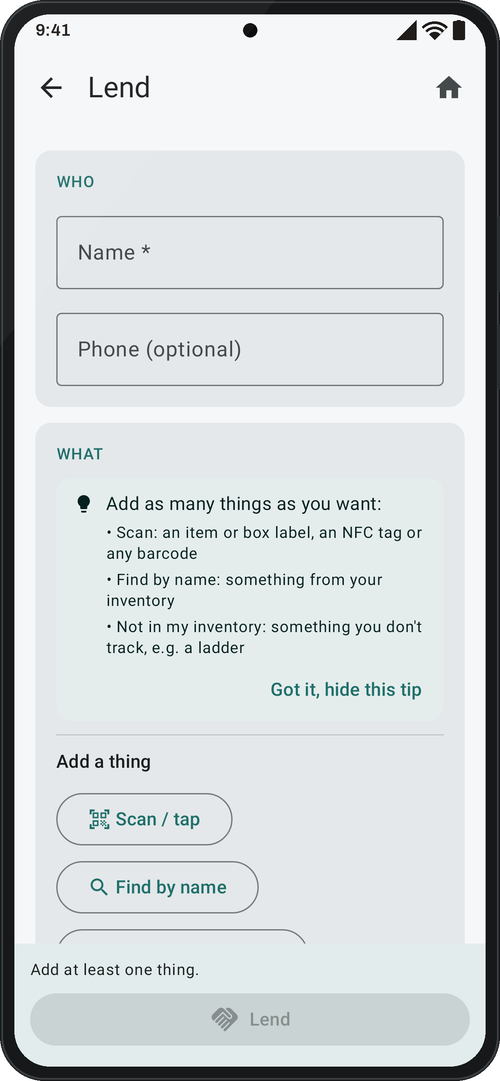
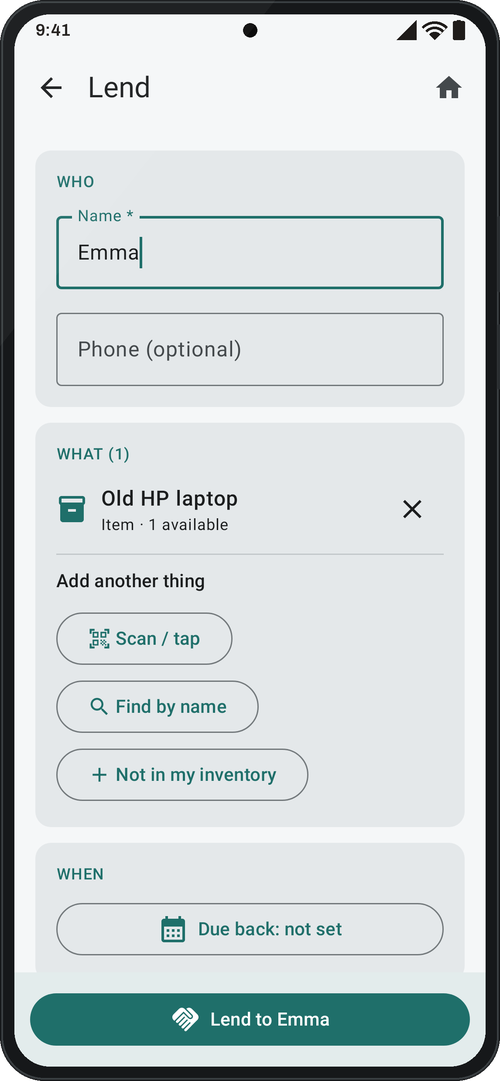
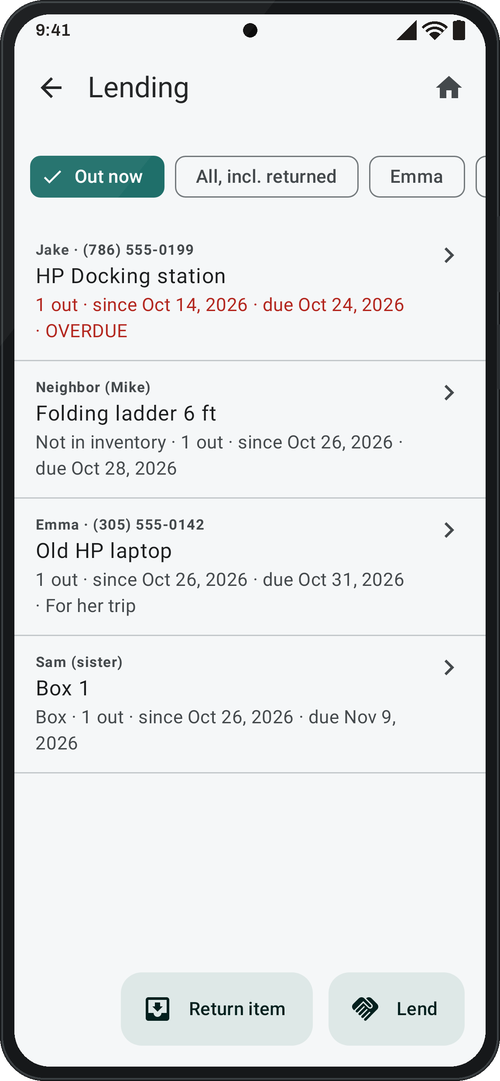
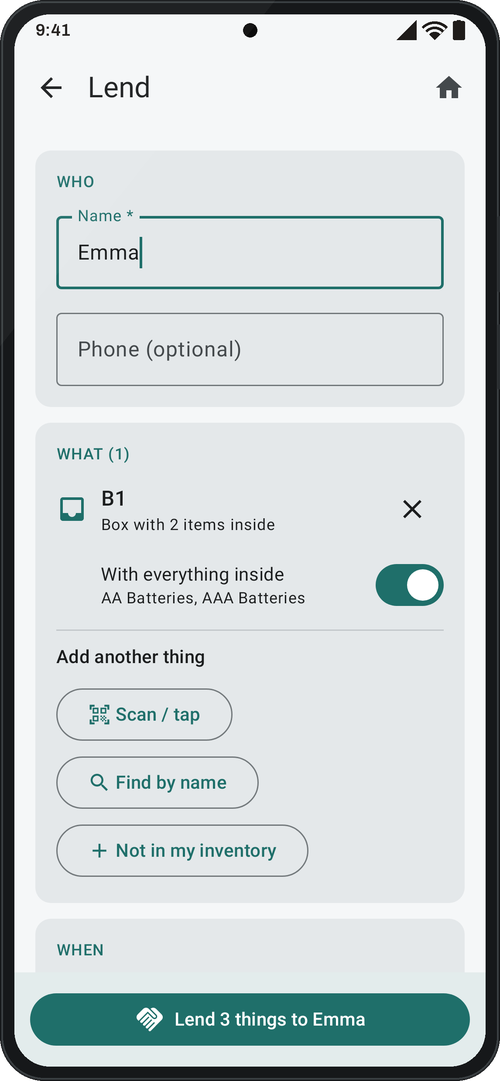
Tap Lend (or “Lend…” on an item or box) and fill in a few cards: Who, What, When, Photos and More. Lend several items at once to one person, mixing items, whole boxes or toolboxes and items that aren’t in your inventory: scan a label, NFC tag or barcode, find it by name, or type it in and make it a new label. Who has it (name and phone) is remembered for next time. Stock doesn’t change: lent items just show as “out”.
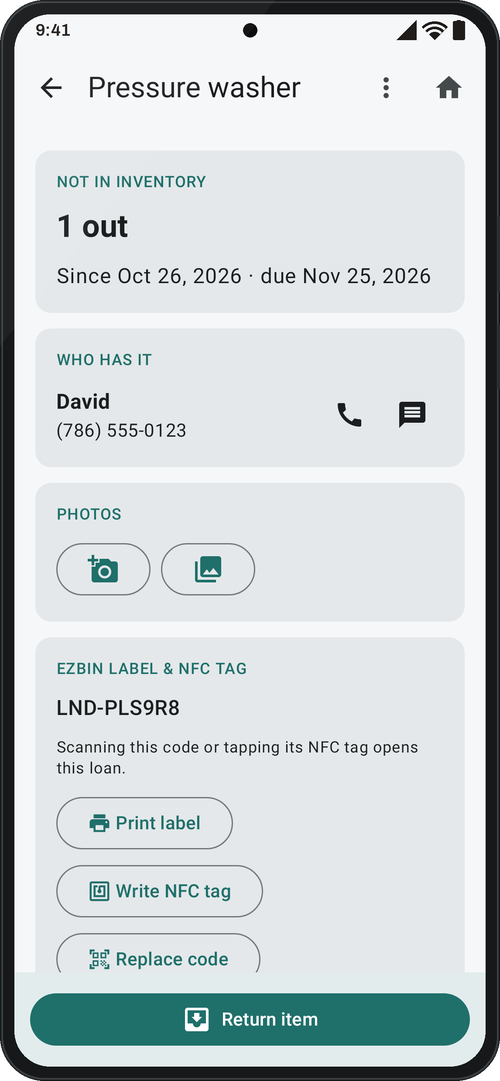
Each item or box becomes its own loan, so it can come back on its own. Its loan screen shows whether it’s out, overdue or back, who has it with a button to call or text, photos of its condition (add or delete), and for items not in your inventory its code and NFC tag: Print label, Write NFC tag, Replace code or Remove code. Items lent together are listed together, with Return all. When it comes back, tap Return item, or in the Lending list scan it, tap its tag, or pick it from the list by name, person or code; partial returns are fine.
Lent items that aren’t in your inventory show up in “Where is it?”, and “Add to my inventory…” turns one into a real item that keeps its code, so the same label or NFC tag still works. The Lending list shows what’s out now, filters by person and marks overdue loans in red; the Lending report (Excel, PDF or CSV) puts sharp photos in the PDF.
A real loan. We lent our pressure washer, which isn’t in our inventory, to David. In EZBin we gave it a label code, wrote it to an NFC sticker and stuck the sticker on the frame. Now, when we tap the sticker with our phone, EZBin opens the loan: who has it, his phone and since when. When it comes back, one tap on Return item closes the loan.
Lending a box Pro
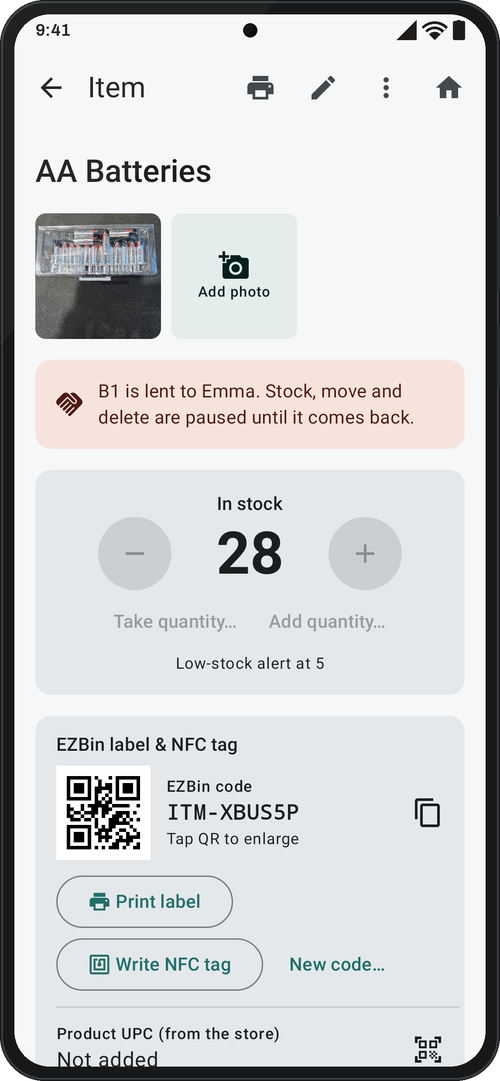
Lend a whole box with everything inside: from the box’s ⋮ menu choose Lend…, and the switch With everything inside is on by default. Each item inside shows Lent to … and isn’t counted as available.
While it’s out, the box and what’s in it are paused: no stock changes, moves, edits or deletes, and nothing can be added into the box. A banner says why, so your inventory never shows what isn’t there. Items that are only partly lent stay usable, never below what is out.
When it comes back, Return all brings everything home, or return items one by one. An item that comes back without its box? EZBin asks where it goes now, and from then on it’s home and usable.
Several inventories
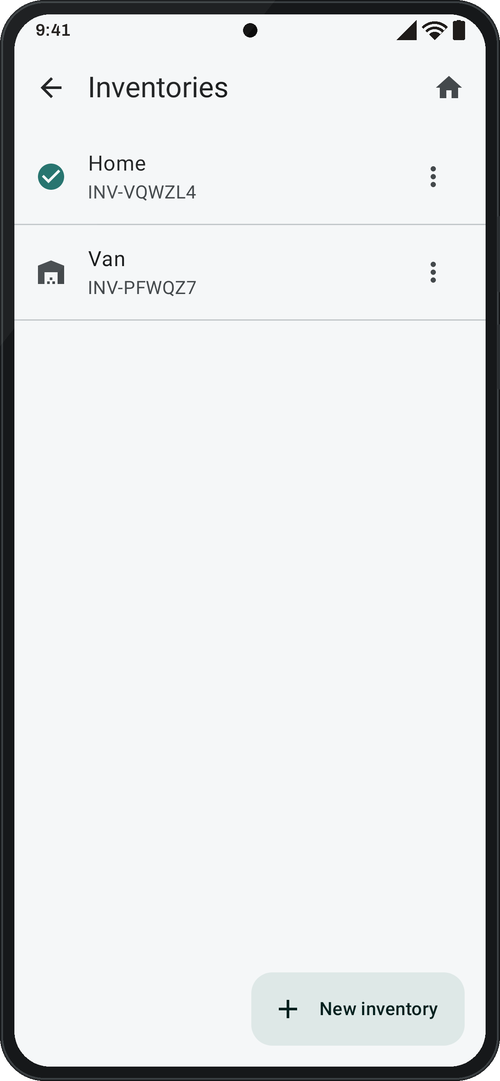
Keep separate inventories, like Van, Garage and Home. Create, rename, delete or switch between them; each has its own QR code. Search always covers all of them, and when you open an item or box from another inventory the app switches to it and says “Now in: Van”.
Labels and printing
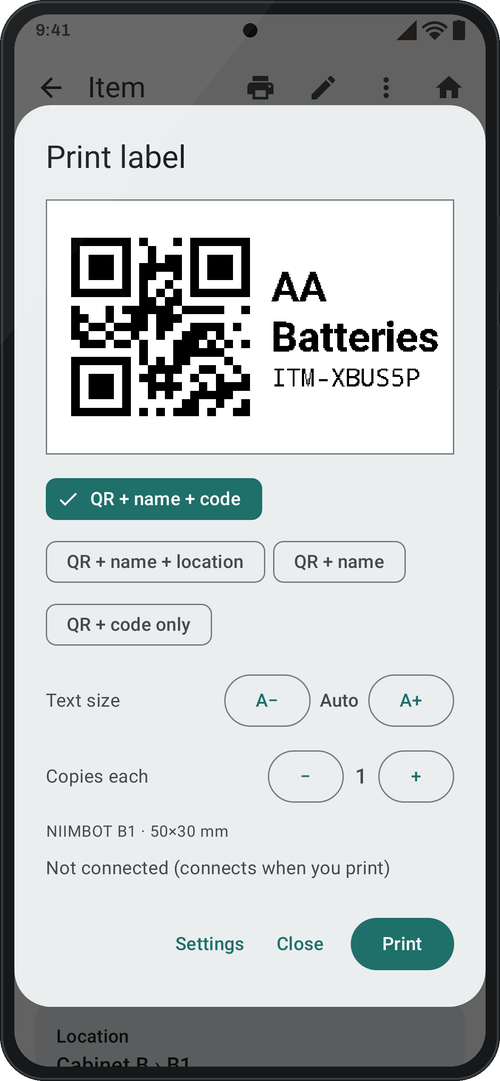
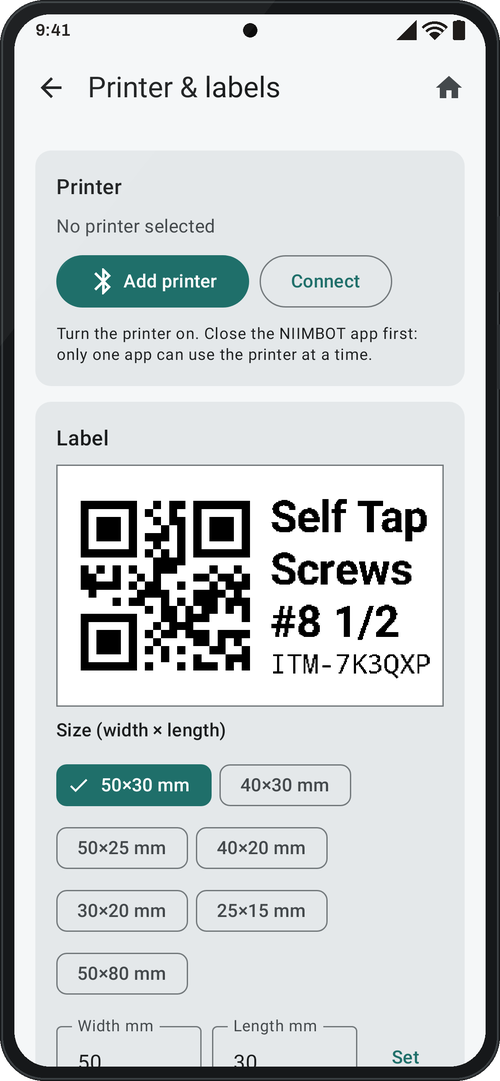
Every inventory, location, box and item gets a QR label with its EZBin code; codes avoid look-alike characters (0/O, 1/I) so they can be typed by hand. Print one label or a batch: one place and everything inside, or the whole inventory (it starts with nothing ticked, so one tap never prints everything). The print dialog has a preview, four templates, text size and copies. Works with NIIMBOT Bluetooth label printers, tested on D11/D11_H (12–15 mm labels) and B1 (up to 50 mm); the model is detected automatically. Set label size, type and darkness, and print a test label.
NFC tags
Write an NTAG213, 215 or 216 sticker from any item or place: hold it to the phone until “Tag ready”. Tapping it later opens that item or box, even if the app is closed. Tags work in Check In, Check Out, Count and Move; on Quick Add and New item a bin’s tag sets the location, and on Lend it adds that item or box. The tag stores only the EZBin code, no personal data. Use anti-metal stickers on metal toolboxes. Needs a phone with NFC.
Units, size and weight
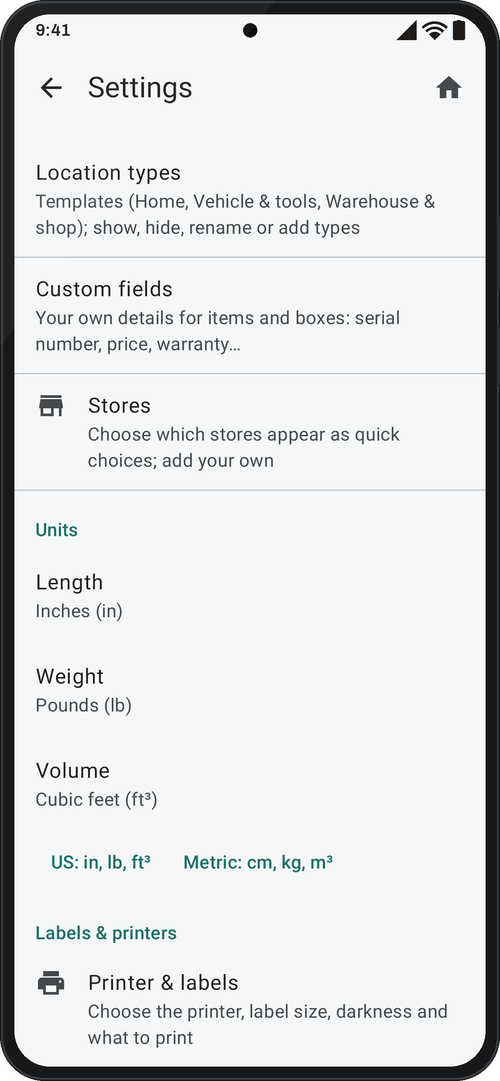
Length in inches, feet, centimeters, meters or millimeters; weight in pounds, ounces, kilograms or grams; volume in cubic feet, yards, inches, meters or centimeters, or liters. Pick the US or metric preset, or each unit. Values are stored once, so switching units never changes your data.
Reports
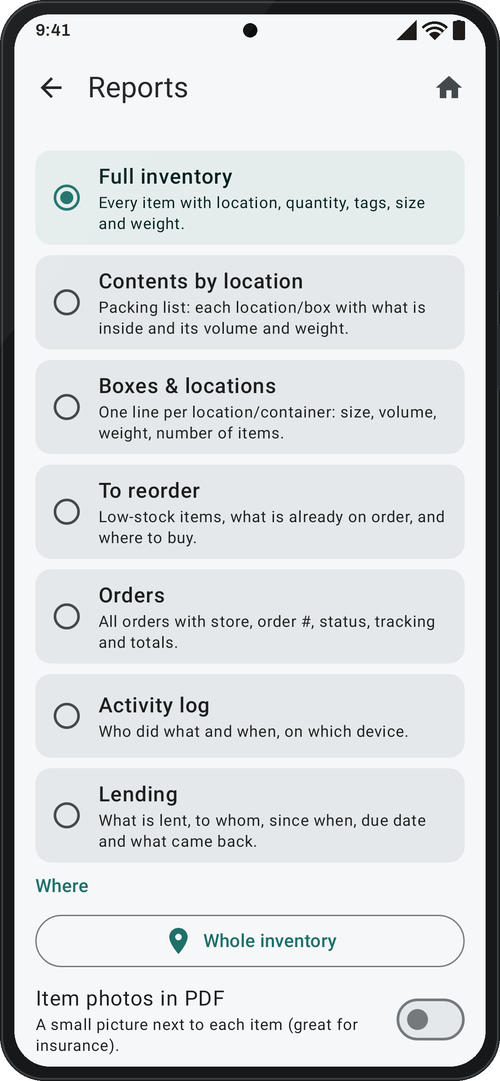
Full inventory, contents by location (a packing list), boxes and locations, to reorder, orders, activity log and lending. Export to Excel, PDF or CSV, then open, share or save to Downloads, for the whole inventory or one place. With Pro, customize them: choose and order the columns, sort, filter by tag, add item photos to the PDF (good for insurance) and save them as My reports.
Settings: make it yours
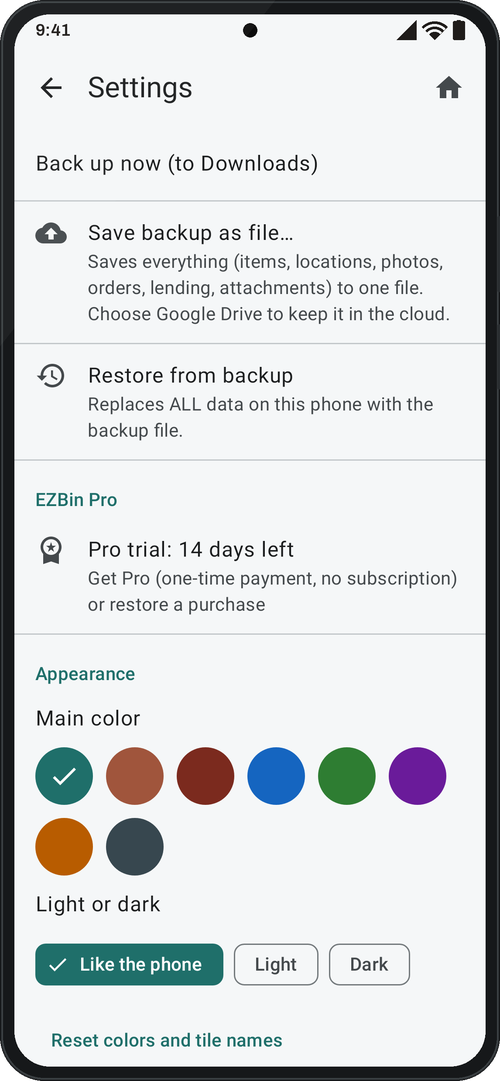
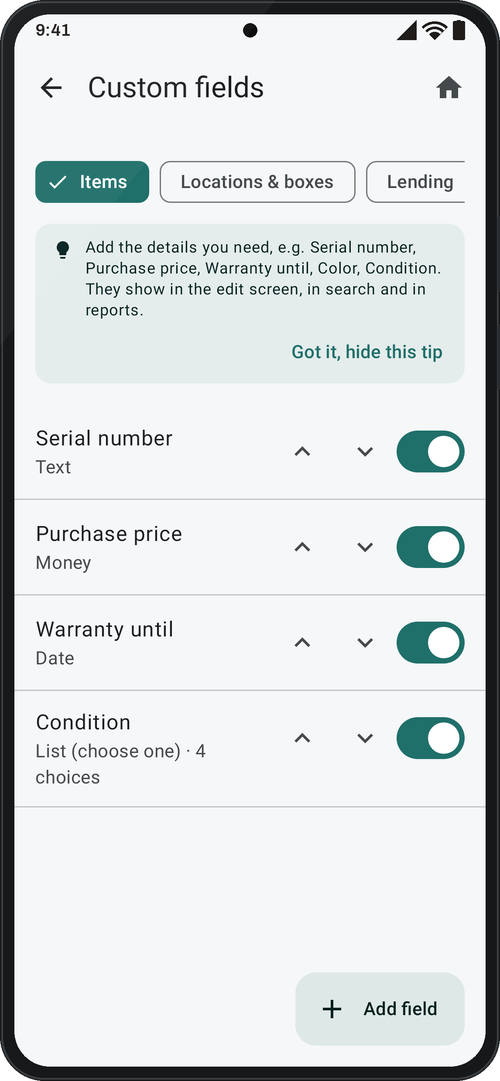
Appearance: the main color (8 choices) and light, dark or like the phone. Home screen tiles: your order, hide the ones you don’t use, and rename and recolor each one. Also your own location types (rename, icon, order, your own), stores, units and label templates, and, with Pro, your own fields for items and locations (text, number, money, date, yes/no, list, link) and report columns.
Scan beep and vibration, printers and labels, the phone’s name, and Help tips (hide them with “Got it”, bring them back in Settings → Help tips). To try the app safely, Load demo company creates a separate sample inventory and leaves your items untouched.
Backups
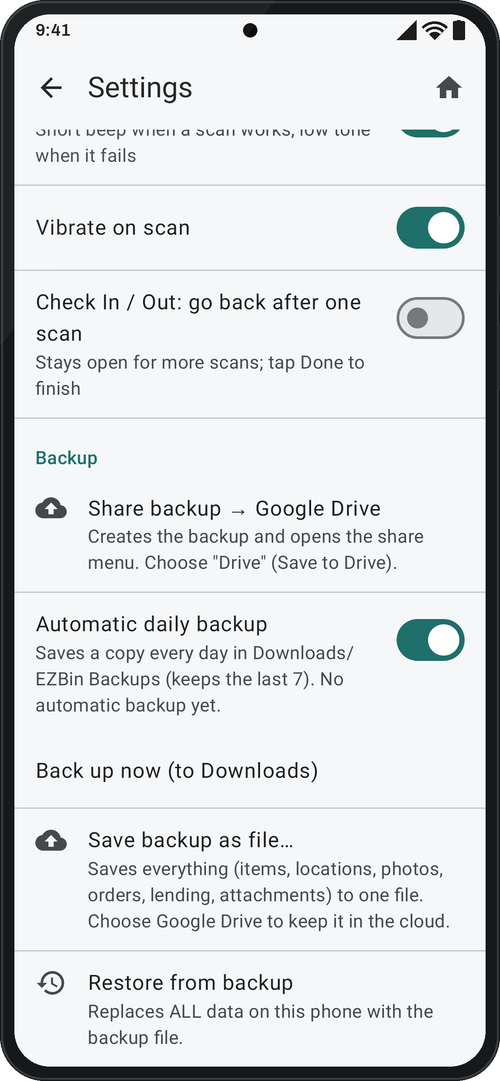
An automatic daily backup is on by default and keeps the last 7 in Downloads/EZBin Backups. You can also back up now, save a backup as a file, or share it to Google Drive. A backup is one .zip with all data, photos, order attachments and loans, and it’s encrypted: only EZBin can open it, and a changed file is refused. Older backups still restore. Restoring keeps a safety copy first and refuses wrong or newer files. Android’s own cloud backup is off for EZBin, so your data is copied only when you make a backup.
Privacy
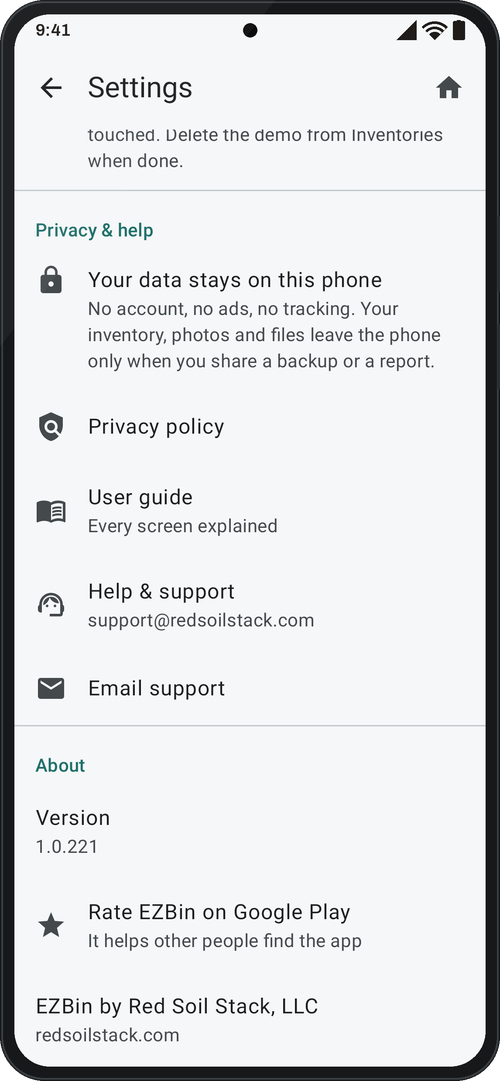
No account, no server, no ads and no analytics. Everything stays on the phone until you share a backup or report, and backups are encrypted so only EZBin can open them; Android’s cloud backup is off for EZBin, and Google ML Kit is used only to read barcodes, on the phone. Permissions are asked only when needed: the camera on the first scan or photo, Bluetooth when you add a printer. In Settings → Privacy & help: “Your data stays on this phone”, the privacy policy, this guide, Help & support and Email support; About shows the version and “EZBin by Red Soil Stack, LLC”.
Still have a question?
The support page answers the most common ones, or write to us.